Tab: Images
With Images tab you can view and edit information about each collectible image or scan.
You can easy add images using this tab window.
Number of images per collectible is NOT LIMITED.
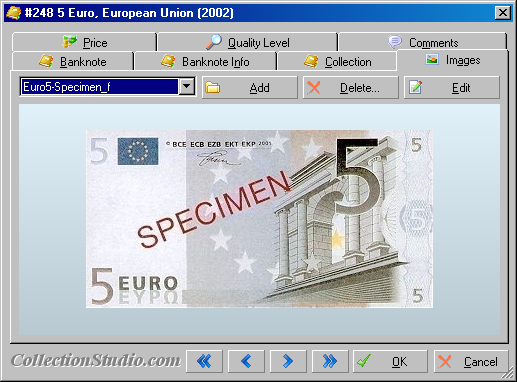
Screenshot of the "Banknote Edit" window with opened "Images" tab page.
Image properties were introduced in the Collection Studio 2.41.
During loading of all previous Collection Studio Documents the following rules are used to populate some image fields:
- if image title consists of "specimen" sub string, the image will be marked as specimen;
- if image title finished with "_f" or consists of "_obverse" or "face", the image type will be marked as "Face";
- if image title finished with "_b" or consists of "_reverse" or "back", the image type will be marked as "Back".
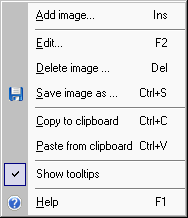
Menu of images
| Add image |
Load images from the files. |
| Delete image |
Remove selected image from Collection Studio document; Prompts to cancel action. |
| Edit |
Open dialog to edit all image fields. |
| Save image as |
Save image into the file. |
| Copy to clipboard |
Copy the selected image into clipboard. |
| Paste from clipboard |
Paste image from clipboard if there is any one. During copying, image will be compressed into PNG format. |
| Show tooltips |
Show tooltips for images if checked (toggle mode). |
| Help |
Show this help topic. |
Setup
You can setup visibility of Images tab in the "Document Options" window separately for particular type of item.
Supported image formats
- GIF - CompuServe's Graphics Interchange Format;
- JPG (JPEG) - a lossy image format widely used to display photographic images;
- BMP (WBMP) - Microsoft Windows Bitmap formatted image;
- WMF - Windows Meta File (Vector graphics);
- EMF - Enhanced (Windows) MetaFile, an extension to WMF (Vector graphics);
- PNG - Portable Network Graphic (lossless, recommended for display and edition of graphic images);
- TIF (TIFF) - Tagged Image File Format (usually lossless, but many variants exist, including lossy ones);
- TGA - Truevision TGA (Targa) image;
- PCX - a lossless format used by ZSoft's PC Paint, popular at one time on DOS systems.
Hot-keys
The table below summarizes all hot-keys available on the Image tab:
| F1 | Open this help window. |
|---|
| F2 | Open Image Edit dialog for selected image. |
|---|
| Ins | Load images from the files. |
|---|
| Del | Remove selected image from Collection Studio document; Prompts to cancel action. |
|---|
| Ctrl+C | Copy the selected image into clipboard. |
|---|
| Ctrl+O | Load images from the files. |
|---|
| Ctrl+S | Save image into the file. |
|---|
| Ctrl+V | Paste image from clipboard if there is any one. During copying, image will be compressed into PNG format. |
|---|
| Ctrl+Ins | Copy the selected image into clipboard. |
|---|
| Shift+Ins | Paste image from clipboard. |
|---|
Image properties
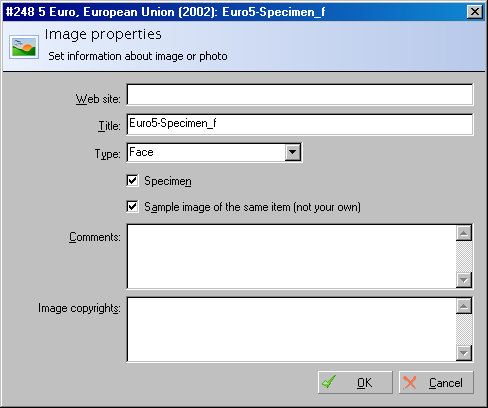
Screenshot of the "Image properties" window with opened 5 euro banknote.
| Web site / Filename | URL or path filename of the image.
Catalin wrote: Path to images location: I have CS installed on USB stick only so I can always have the
collection with me. But the drive letter changes with every PC so all
the 800 images cannot be displayed at all. Can you resolve this?
Implemented solution: For images placed on the removable devices (for example in the "Image Edit" dialog filename is: H:\images\scan1.jpg) we have a special check: when drive letter is changed we automatically check the folder of the device where current Collection Studio Document is placed. So, for example, if current document is placed on the drive "K:\", during loading of the image, we will try next paths of the image in the following order:
- H:\images\scan1.jpg - trying original path;
- K:\images\scan1.jpg - trying document path;
- A, B, C, D ... - trying all possible paths (excluding first two);
|
|---|
| Title | Title of the image |
|---|
| Type | Type of the collectible screenshot or photo. Default values: face, back, back and face. By default it shows also all possible types of the image which are used in current document. |
|---|
| Specimen | Specimen flag. This term belongs generally to banknotes but can be used for other collectibles.
A specimen banknote is printed to as a way of checking to see whether or not the design is suitable for putting into full production as a currency issue. Sometimes, specimen banknotes are printed for distribution to central banks to aid in the recognition of banknotes from a country other than their own.
|
|---|
| Sample image | "Sample image" flag which shows: this image is not actual collectible of current collection. |
|---|
| Comments | Comments for currently selected image |
|---|
| Image copyrights | Copyrights of the images. |
|---|
| View EXIF | View information from EXIF - Exchangeable Image File Format. This feature is supported only for images in JPG format.
Exchangeable image file format (Exif) is a specification for the image file format used by digital cameras. The specification uses the existing JPEG, TIFF Rev. 6.0, and RIFF WAV file formats, with the addition of specific metadata tags. It is not supported in JPEG 2000, PNG, or GIF. |
|---|
Available plugins for images
List of plugins in Collection Studio designed for images
| Name |
Description |
| Remove Images |
Remove all images from selected collectible |
| Remove All Images |
Remove all images from all collectibles in the collection |
| Embed all linked images |
Embed all linked images for all collectibles in current collection |
For complete list of available plugins please check "Plugins" help article.
Содержание
|  Русский
 Deutsch
 English
 Italian
 Polish