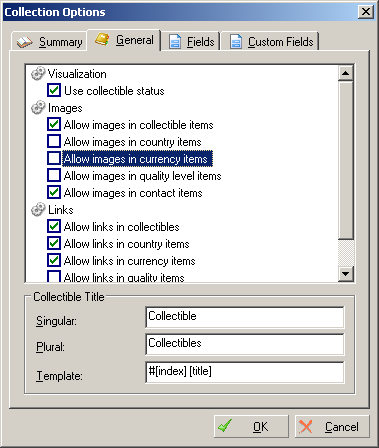
The full collectible title is used in several places of the Collection Studio to exactly indicate one collectible item from another:
Each collectible type has its own template variables. Please, use the following table to determine all possible template fields for your collectable:
You can set option to create a backup file during each saving of the Collection Studio Document. See Settings for details.
| Options: Visualization |
|---|
| Use collectible status | Check if you want to work with collectible status. In this case additional "Status" tab page for each collectible will be shown. Default state: Checked. |
| Options: Item Links |
|---|
| Allow links in collectible items | Check if you want to add links for each collectible item separately (in this case an additional tab will appear in the Collectible Edit window). If you have disabled this feature link tab in the Collectible Edit window will be available only for collectibles which already have some links. Default state: On.
For each collectible, automatically all links associated with it will be taken:
- all links from corresponding country / quality / currency,
- all links from contact ponited by donator field. |
| Allow links in country item | Check if you want to add links for each country item separately (in this case an additional tab will appear in the Country Edit window). If you have disabled this feature link tab in the Country Edit window will be available only for countries which already have some links. Default state: On. |
| Allow links in currency item | Check if you want to add links for each currency item separately (in this case an additional tab will appear in the Currency Edit window). If you have disabled this feature link tab in the Currency Edit window will be available only for currencies which already have some links. Default state: On. |
| Allow links in quality level item | Check if you want to add links for each quality level item separately (in this case an additional tab will appear in the Quality Level Edit window). If you have disabled this feature link tab in the Quality Level Edit window will be available only for quality levels which already have some links. Default state: Off. |
| Allow links in contact item | Check if you want to add links for each contact item separately (in this case an additional tab will appear in the Contact Edit window). If you have disabled this feature link tab in the Contact Edit window will be available only for contacts which already have some links. Default state: On. |
| Options: Item Images |
|---|
| Allow images in collectible items | Check if you want to add images for each collectible item separately (in this case an additional tab will appear in the Collectible Edit window). If you have disabled this feature Image tab in the Collectible Edit window will be available only for collectibles which already have some images. Default state: On. |
| Allow images in country item | Check if you want to add images for each country item separately (in this case an additional tab will appear in the Country Edit window). If you have disabled this feature Image tab in the Country Edit window will be available only for countries which already have some images. Default state: Off. |
| Allow images in currency item | Check if you want to add images for each currency item separately (in this case an additional tab will appear in the Currency Edit window). If you have disabled this feature Image tab in the Currency Edit window will be available only for currencies which already have some images. Default state: Off. |
| Allow images in quality level item | Check if you want to add images for each quality level item separately (in this case an additional tab will appear in the Quality Level Edit window). If you have disabled this feature Image tab in the Quality Level Edit window will be available only for quality levels which already have some images. Default state: Off. |
| Allow images in contact item | Check if you want to add images for each contact item separately (in this case an additional tab will appear in the Contact Edit window). If you have disabled this feature Image tab in the Contact Edit window will be available only for contacts which already have some images. Default state: On. |
| Collectible title |
|---|
| Singular | Title of your collectible in singular form, for example: coin. |
| Plural | Title of your collectible in plural form, for example: coins. |
| Template | Specify collectible title using field tags |
 Русский
 Deutsch
 English
 Italian
 Polish